
Screens
The front end is one prefab (Content/Prefabs/FrontEnd.prefab) with every screen. One instance survives scene loads, and there is always exactly one EventSystem. Turn screens you don't need off in the menu builder (Setup tab > Screens): they are removed when the game starts, and the buttons leading to them hide. Every screen's options are in the same tab, under Options for each screen.
| Screen | What it does |
|---|---|
| Title | Your game's name and "Press any key", which can blink, pulse or stay still (Prompt Animation). |
| Main menu | Continue (only when a save exists), New Game, Load Game, Settings, Credits, Quit. |
| Settings | Tabs of settings, help text (and an optional help picture) for the focused setting, Apply, Cancel, Reset Category, Reset All. Leaving with unapplied changes asks Apply / Discard / Keep editing. A search box and a reset button per setting (both can be switched off, see below). |
| Credits | Scrolls a text file you provide (simple # headings). |
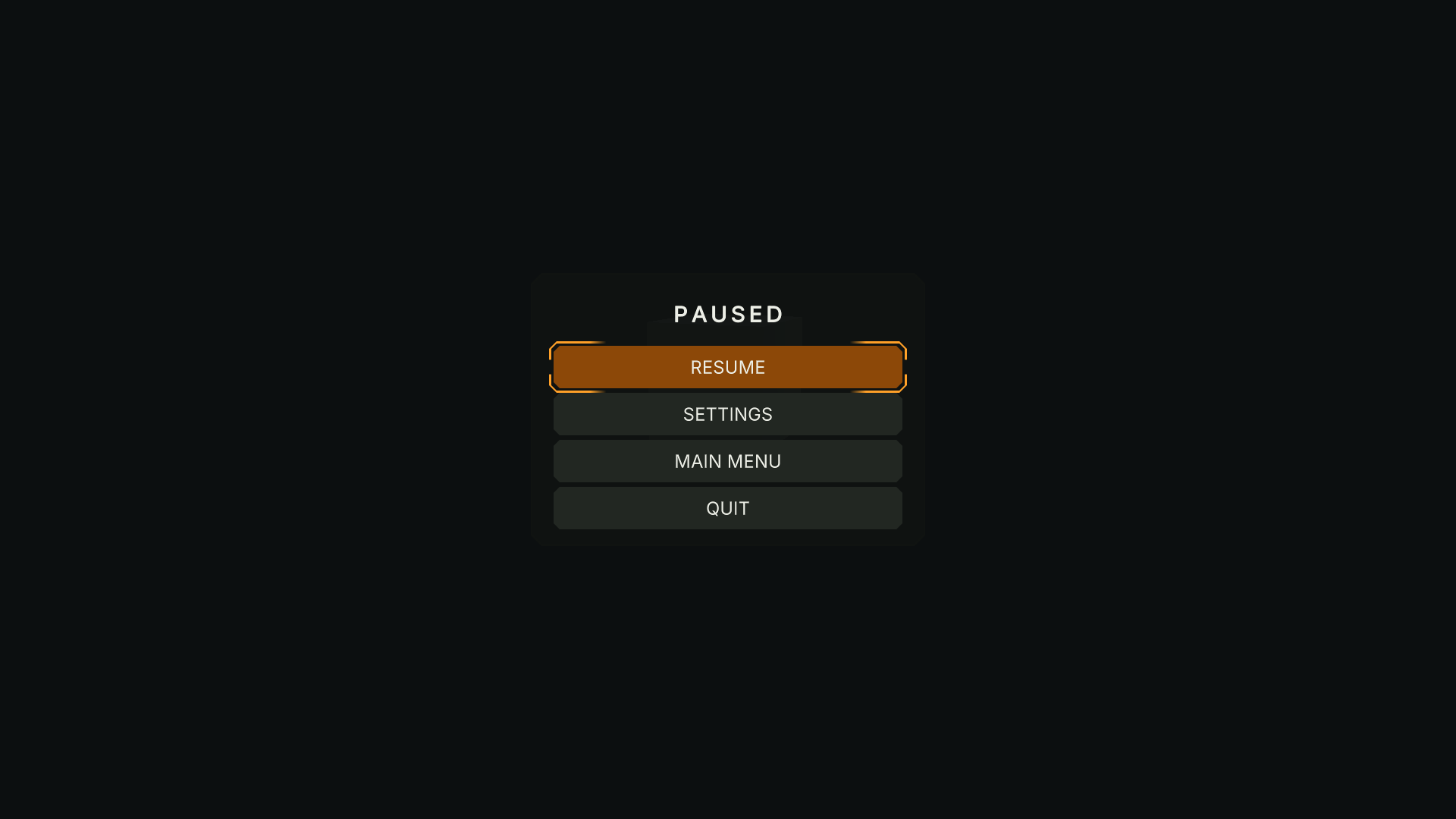
| Pause | Resume, Settings, Main Menu (asks first), Quit (asks first). |
| Loading | A progress bar, ring or spinner (Progress Style), rotating tips from a text file, pictures picked at random (Pictures), optional "Press any key to continue". |
| Confirm dialog | Yes / No questions (quit, back to main menu, unsaved changes, key conflicts). |
| Display change | "Keep these display settings?" with a 15-second countdown. |
| Controller disconnected | Shown when the last gamepad disconnects during play (optional). |
Startup screens (off until you switch them on) #
Kit window > Setup > Startup screens and extras (or the Startup Sequence component on the front end). They show before the title screen, in this order:
| Screen | What it does | Shows |
|---|---|---|
| Splash logos (SplashScreen > Logos) | Your logos, faded in and out; any button skips. | every launch |
| Health / photosensitivity warning (HealthWarningScreen) | A warning the player reads (Continue works after 3 seconds). Edit the text. | every launch |
| License / consent (ConsentScreen) | Your license or privacy notice with Accept and Decline. Decline quits (or raises On Declined when Quit On Decline is off). | until accepted |
| First-launch setup (FirstLaunchScreen) | Language, text size, subtitles, color blind filter and brightness, with Done. Change the list in Setting Ids. | once |
| What's new (WhatsNewScreen) | A text (set Body File). | once per game version |
Each step's Frequency can be Every Launch, Once or Once Per Version. "Seen" flags are kept in PlayerPrefs; right-click the Startup Sequence > Reset Seen to see them again.
Extras, messages and settings pages #
- Extras (main menu button, off by default): ExtrasScreen > Entries, each a label, Unlocked and an On Chosen event (open your gallery, jukebox or level select).
extras.SetUnlocked("Secret Level", true)unlocks one. - Messages:
MenuRoot.Instance.ShowMessage("Saved", "Your game was saved.")shows the MessageScreen (title, text, up to two buttons and callbacks). - Settings pages: Calibrate Brightness (Graphics tab: a test picture and the Brightness slider; shown where Brightness works) and Screen Edges (Display tab, desktop and console: corner marks and a slider that moves the menus in from the edges of a TV). Any Settings Page Screen shows the settings you list by id, and a Screen Link setting opens any screen by name.
Saves: Continue, Load Game, Save Game #
Set MenuRoot.Instance.SaveBridge to your save system (ISaveGameBridge: HasSave, Continue, OpenLoad, OpenSave, IsOpen, HandleCancel). Continue and Load Game then follow its saves, and the pause menu gets a Save Game button. With the Save module in the project, the menu builder's Check tab offers Enable save system bridge (it adds the SHIPREADY_SETTINGS_SAVE define): Continue loads the newest manual, auto or quick save; Load Game and Save Game open the Save Menu above the front end (add its SaveMenu prefab to your scene). Without a bridge the menu raises its UnityEvents as before.
Settings screen options #
On the Settings Screen component (FrontEnd > SettingsScreen):
- Show Search (on): a "Search settings" box above the tabs finds settings in every tab by name or help text, in the player's language. While searching, Reset Category resets the settings found.
- Show Reset Buttons (on): a small Reset button on each setting puts that one setting back to its default (mouse and touch; it's greyed out when there is nothing to reset). From code:
SettingsRuntime.Current.ResetToDefault("audio.music-volume"). - Show Help Text: the help line (and the setting's Help Image, when it has one).
Notices #
The front end shows short messages at the bottom of the screen (Toast): after Apply when a changed setting needs a restart, and whenever you call MenuRoot.Instance.ShowToast("Settings imported"). Delete the Toast object to have none.
Scene modes #
Put a Menu Scene Mode component in each scene:
- Front End (menu scenes): the menu shows on load, optionally with the title screen.
- Gameplay (levels): the menu is hidden; Esc / Start pauses.
- Hidden: the menu stays out of the way (cutscenes, loading levels).
Navigation #
Keyboard, mouse and gamepad work everywhere. Focus is always visible and comes back to the button you left when you go back. Back is Esc or the gamepad's east button.
Phones and tablets #
On touch devices the whole menu is 1.25 times bigger so every control is finger-sized (Menu Root > Touch Scale), the title screen says "Tap to start" (Title Screen > Touch Prompt), menus stay inside the safe area (notches, rounded corners), and nothing needs a mouse pointer hovering: a tap selects, and the help line follows the selection. Settings that only make sense on a desktop (Cursor Size, Mute In Background, Monitor, Screen Edges) are hidden there. Android builds are tested (IL2CPP ARM64 and Mono).
Text #
Every text can be translated (Languages). Texts shrink to fit long translations instead of being cut off; the game title may take two lines.