
Quick Start
Shipready works the moment it's imported. No setup is needed for the first report.
- Open Tools > Shipready > Playtest > Open Demo > Bug Hunt and press Play.
- Press Deliver the crate. The game throws an error and the crate falls through the floor.
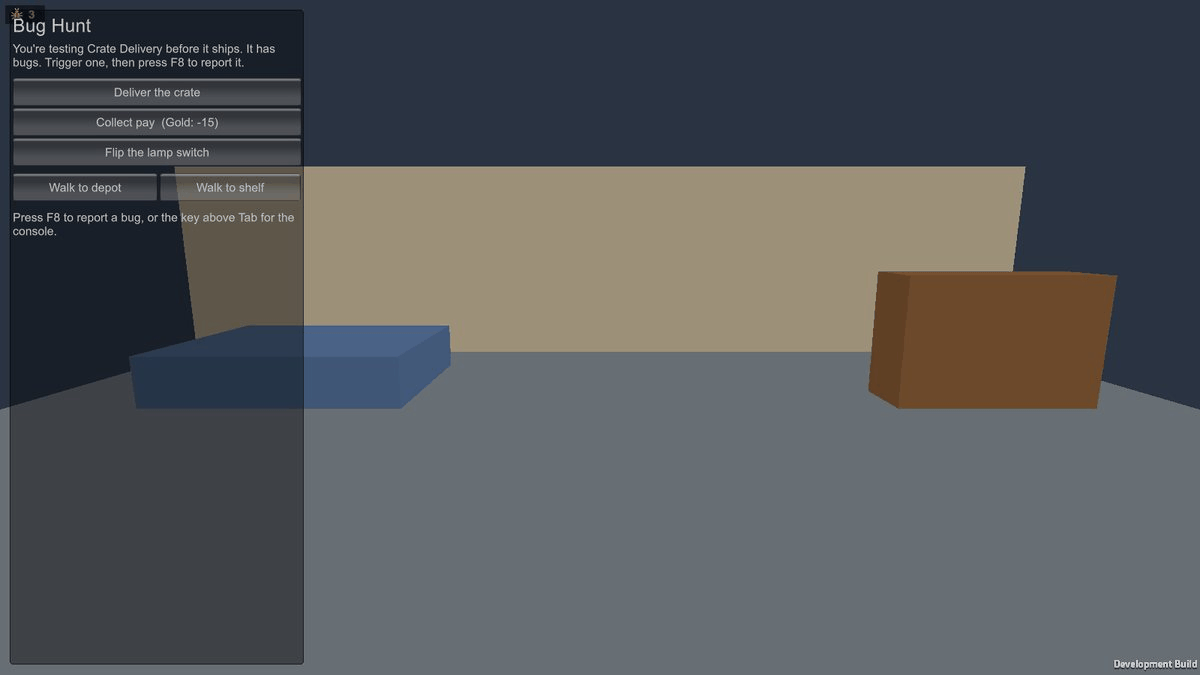
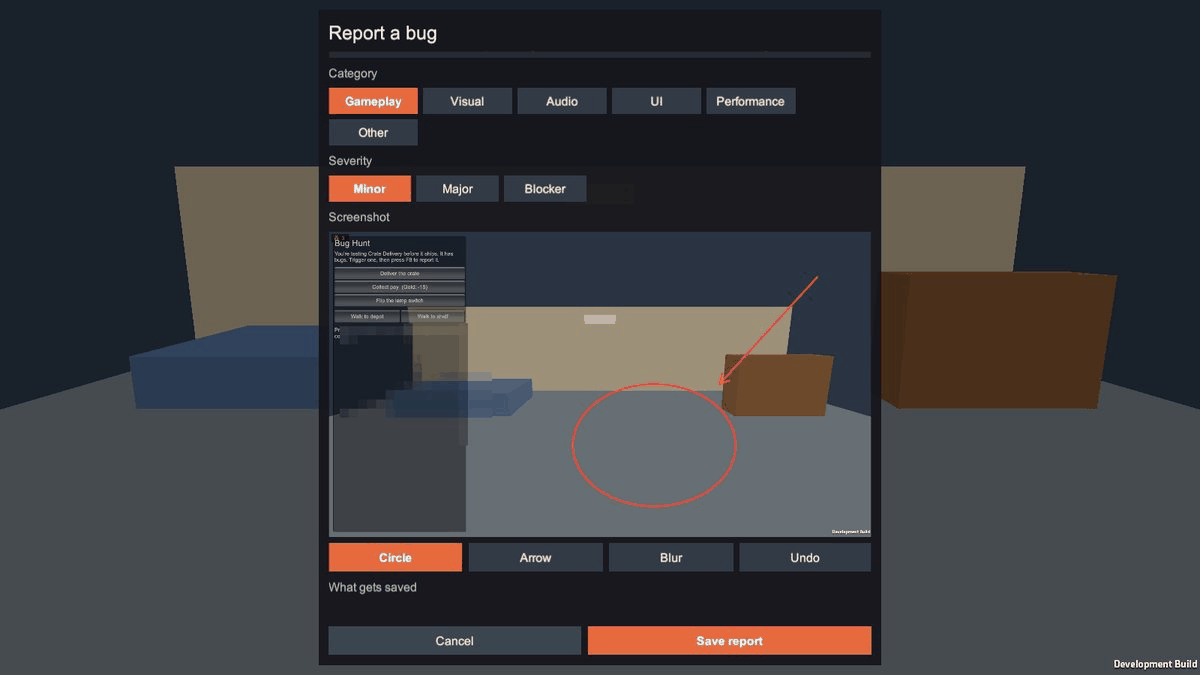
- Press F8. The form opens with a screenshot taken just before it, and the steps already filled in.
- Type what happened, draw a circle round the crate, and press Save report.
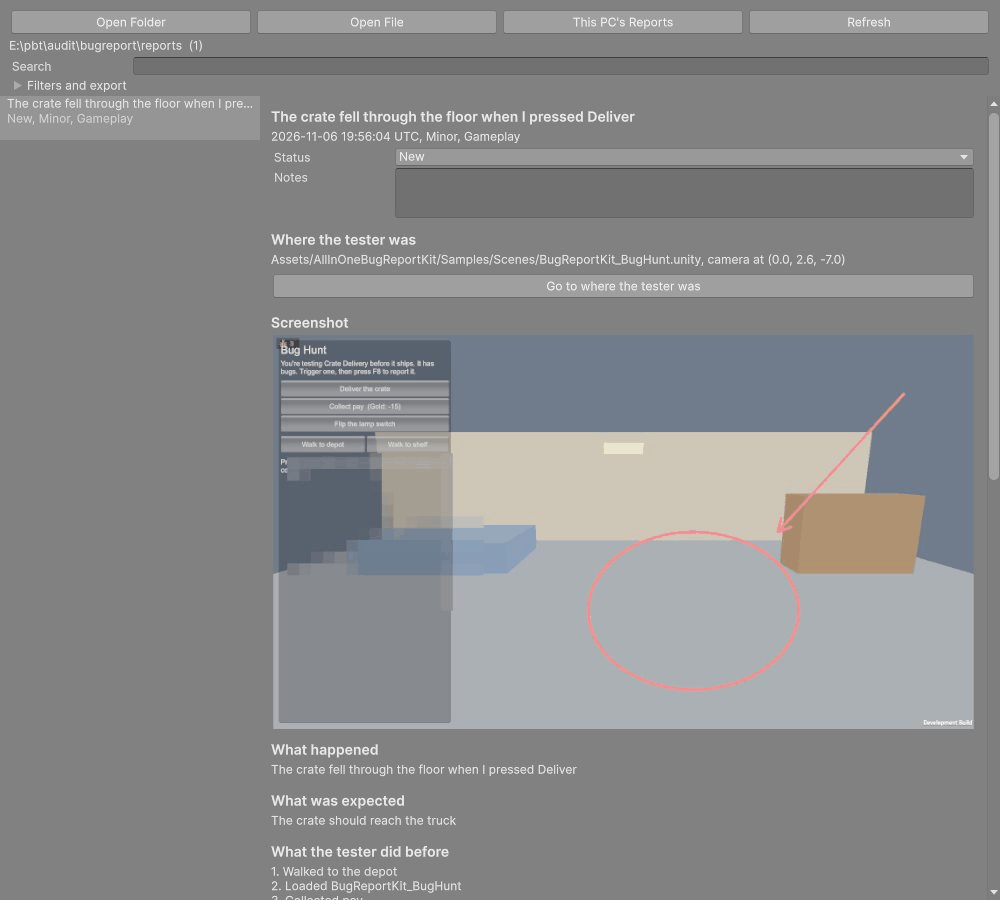
- Stop playing. Open Tools > Shipready > Playtest > Report Inbox and pick This PC's Reports.
- Click the blue BugHuntDemo.cs link under the error: your code editor opens on the broken line.
- Press Go to where the tester was: the Scene view jumps to the tester's camera.
In your own game #
Press F8 while playing any of your scenes. That's all. To make it yours:
- Tools > Shipready > Playtest > Setup Wizard creates the settings, adds your game state to reports and points you to the rest.
- Press the key above Tab while playing for the debug console, stats and options.
- In a Development Build Shipready is there; in a release build it isn't. See Builds and privacy.
Where reports go #
On the tester's device, in the game's persistent data folder under BugReports. Each one is a single zip with
report.html (opens in any browser), report.json, the screenshot, the replay pictures and the log. Testers send you
the zip; you open it in the Report Inbox, or just open the html.