
Display safety
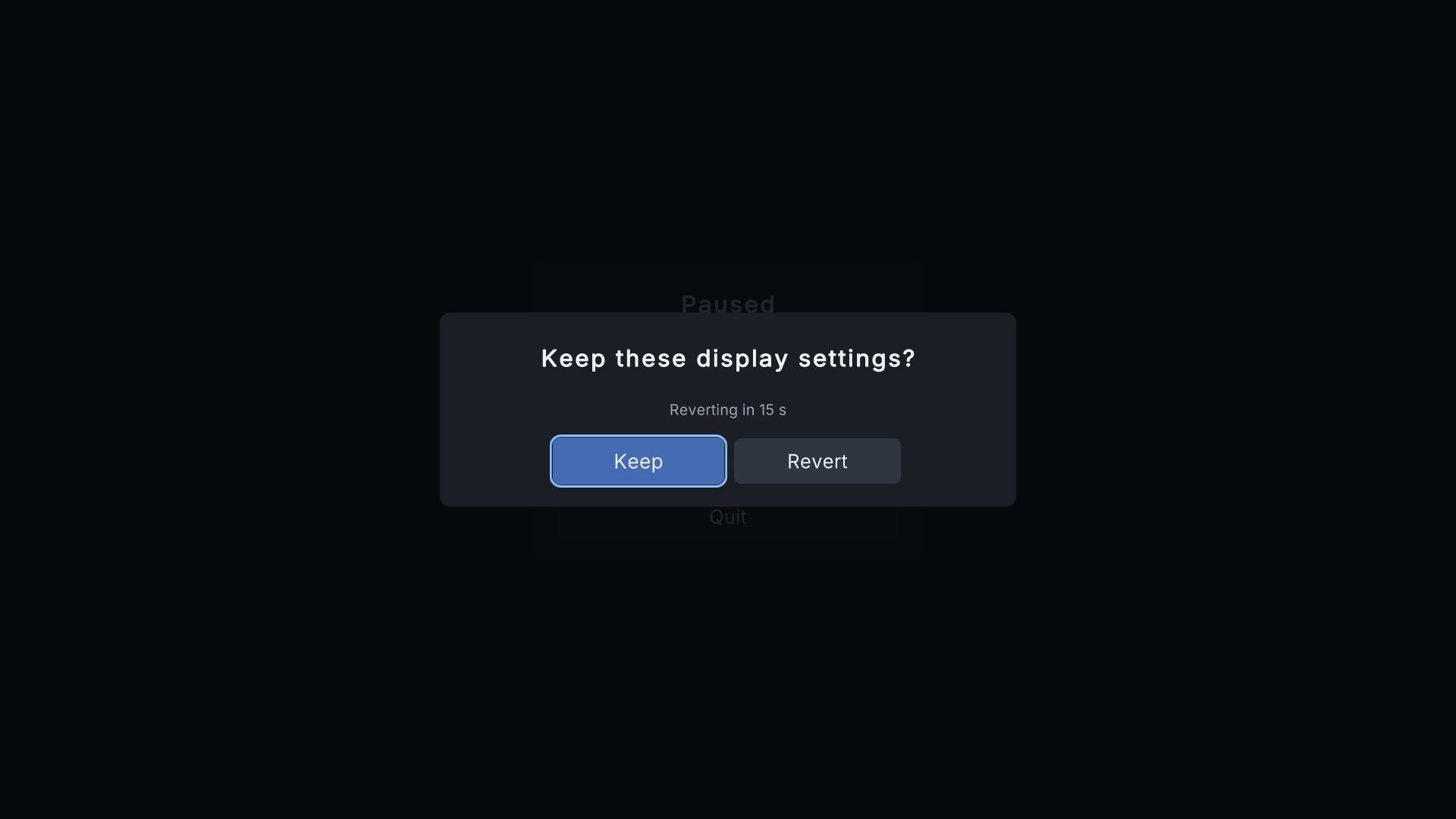
Changing resolution, refresh rate, window mode or monitor can leave a player with a black screen. Shipready protects them:
- Confirmation: after a display change, "Keep these display settings?" counts down from 15 seconds. Without Keep, the previous mode comes back by itself.
- Crash recovery: Shipready notes the pending change in the settings file before applying it. If the game crashes or is closed during the countdown, the next start restores the previous mode.
- First launch: the defaults are the mode the game started in, so nothing changes until the player chooses.
The settings file #
- Saved as
settings.jsoninApplication.persistentDataPath(versioned JSON). - Written safely: a temporary file is written first, and the previous file is kept as
settings.json.bak. - A damaged file is replaced by the backup or the defaults; the damaged copy is kept as
settings.json.corruptand one warning is logged. - Start the game with
-reset-settingsto delete the saved settings (useful for support). - Menu Root > Settings Storage chooses where settings are saved: Auto (the file; PlayerPrefs on WebGL), File or PlayerPrefs (the same JSON under one key, with a backup key). For a cloud save or a console save system, see Extending and API.
Other details #
- Refresh rates are offered per resolution; a resolution change re-checks the refresh rate.
- Exclusive full screen is offered where the platform supports it.
- Monitor selection appears only on Windows with two or more monitors.