
Quick Start
Your first working menu in a few clicks. You need Unity 6000.0 or newer. TextMesh Pro's Essential Resources must be in the project (Unity offers to import them the first time a text appears; you can also use Window > TextMeshPro > Import TMP Essential Resources).
1. Open the menu builder #
Tools > Shipready > Menus > Menu Builder. It opens on the Home tab. (A short welcome window also appears once after import; you can turn it off.)
2. Follow the four Quick Start buttons #
Each step turns into a green check mark when it is done.
- Copy profile. Copies Shipready's settings profile to
Assets/RareGeometryData/Shipready, so your edits never touch Shipready's own files (updates stay safe). - Create and assign. Creates a starter Audio Mixer (Master, Music, SFX, Voice, UI) and connects the volume sliders to it. Route your AudioSources to its groups. Master Volume works even without a mixer.
- Create front end. Adds the menu prefab to the open scene, plus an EventSystem if the scene has none. One Ctrl+Z undoes it.
- Add Menu Scene Mode. Marks this scene as your menu scene. In your level scenes, add a Menu Scene Mode set to Gameplay: there, Esc or Start opens the pause menu.
3. Press Play #
- Any key leaves the title screen.
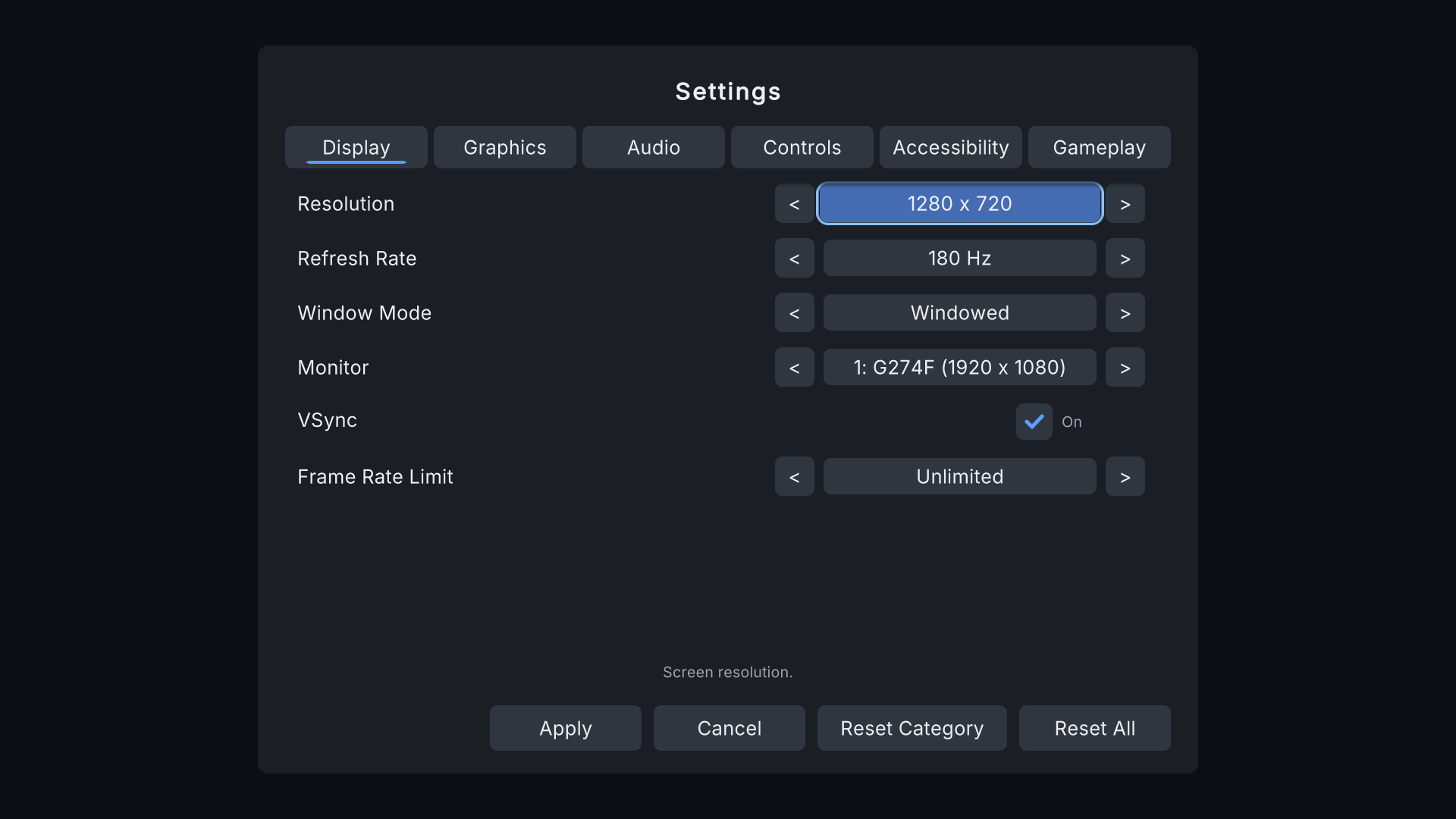
- Open Settings, change something and press Apply. Changes are saved and come back the next time you play.
- Display changes ask "Keep these display settings?" and undo themselves after 15 seconds if you don't confirm.
4. Connect your game #
- New Game raises
MenuRoot.onNewGame: in the Inspector of the front end, add your scene-loading method there (or set New Game Scene to load a scene with a loading screen). - Continue and Load Game raise their own events; tell the menu whether a save exists with
MenuRoot.Instance.SetHasSave(true). - Want a different look? Theme tab > Use on Tactical or Storybook.
The guided tour #
On the Home tab, Next walks through the other tabs in six short steps: Setup, Theme, Settings, Check and About.
Next #
- Samples show Shipready in a puzzle, a first-person and a cozy adventure game.
- Settings catalog explains how settings reach your game.