
Controls and rebinding
Without the Input System package #
The menus work with the old Input Manager (keyboard and gamepad navigation, Esc / Start to pause). Mouse and controller sensitivity, invert and vibration are stored settings (Read tier) your input code reads. Key rebinding and controller prompts need the Input System package.
With the Input System package #
Rebinding, controller prompts and the look settings switch on by themselves.
- In the menu builder's Settings tab, click the Key Bindings setting of your profile copy (or add it from the catalog) to select it.
- Set Actions to your Input Action Asset, and Action Maps to the maps players may rebind (for example
Player). Optional: Include Actions to show only some actions. - Protected Actions are never offered and never swapped away, so players can't lose menu controls (Submit, Cancel, Navigate, Pause by default).
- Look Actions: your look action(s). Mouse / Controller Sensitivity and Invert X / Y are applied to them as processors, live.
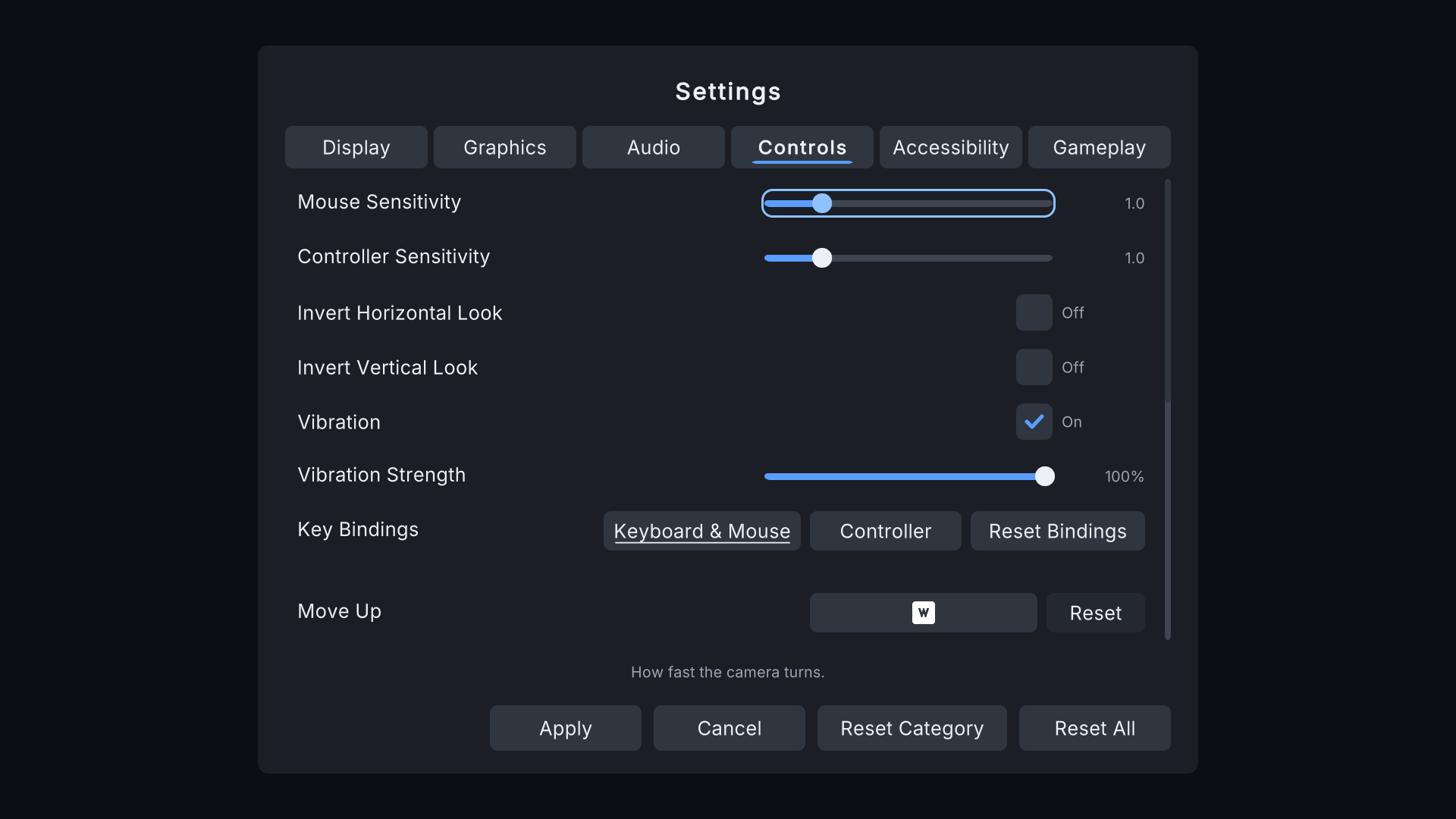
What players get:
- Keyboard & Mouse and Controller tabs, one row per binding, including the parts of WASD-style composites.
- Choose a row and press the new key or button. Esc or Start cancels; it also gives up after 5 seconds.
- If the key is already used by another action: "Swap them?" with Swap or Cancel.
- Reset per row and Reset Bindings for all.
- Rebinds are part of Apply / Cancel like any setting, and are saved in the settings file.
When your game uses a copy of the actions #
The menu rebinds the asset set in Actions. A single PlayerInput uses that asset itself, so nothing else is needed. Two cases use a copy, and the copy must be registered so it follows the rebinds and look settings:
- A generated C# input class: after
controls = new MyControls();callInputBindings.Track(controls.asset);(namespaceRareGeometry.Shipready.Settings.Rebinding). - Local multiplayer with PlayerInputManager: add Player Input Bindings Sync next to each PlayerInput.
Symptom when this is missing: the new key shows in the menu, but the character still uses the old one. More in Using it in an existing game.
Controller prompts #
Bindings show button pictures for keyboard and mouse, Xbox, PlayStation and Switch controllers (Kenney Input Prompts, CC0), and switch to the device the player used last. Generic controllers show the stick pictures and text for face buttons. The Glyph Map asset (InputSystem/Content/DefaultGlyphMap) maps control names to sprites: replace any sprite with your own.
The Button Prompts setting (Controls tab) lets players pick one set for every controller (Xbox, PlayStation, Switch or generic) instead of following the device; read DisplayExtras.PromptStyle for your own HUD prompts. Vertical Sensitivity scales up and down look speed against left and right (applied with the look sensitivity).
Vibration #
ControllerRumble.Play(low, high, seconds, this) vibrates the current gamepad, scaled by the Vibration and Vibration Strength settings.
Pause action #
The Input System front end uses Esc / gamepad Start for pause, or your own action: Setup tab > 3. Pause action.