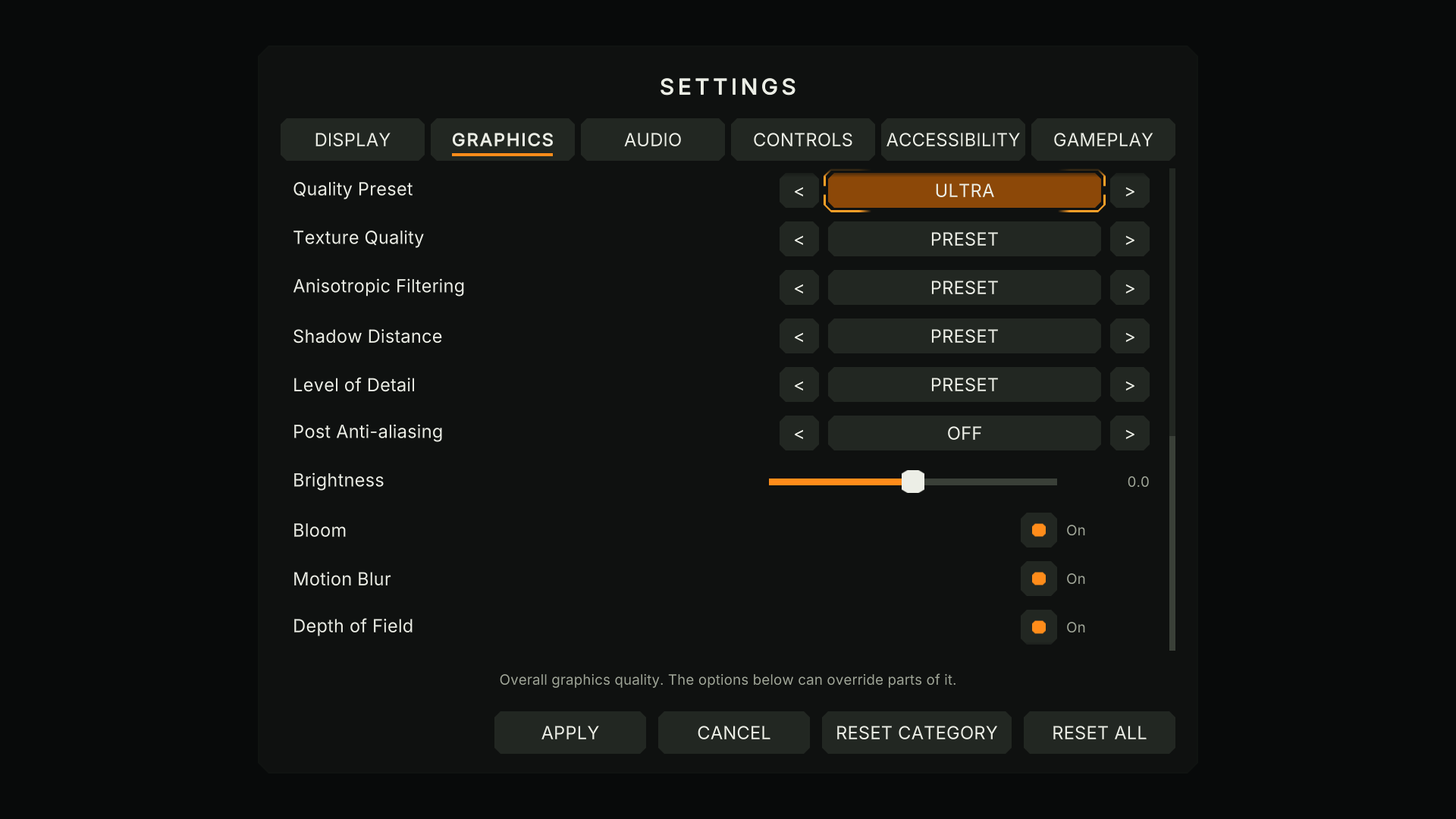
Graphics
Graphics settings follow the render pipeline your project uses. Settings a pipeline can't use are hidden there automatically.
| Setting | Built-in | URP | HDRP |
|---|---|---|---|
| Quality preset | Yes | Yes | Yes |
| Texture quality, anisotropic filtering, shadow distance, level of detail | Yes | Yes | Yes |
| VSync, frame rate limit | Yes | Yes | Yes |
| MSAA, shadow quality, shadow resolution | Yes | URP's own versions | No |
| Shadow cascades (1, 2, 4) | Yes | Yes | No |
| Lens flare (on/off) | No | Yes | No |
| Color blind filter (Accessibility tab) | Yes | Yes | Yes |
| Render scale, upscaling filter, HDR | No | Yes | No |
| Post anti-aliasing (FXAA, SMAA, TAA) | No | Yes | No |
| Bloom, motion blur, depth of field, film grain, vignette, chromatic aberration (on/off), brightness | With Post Processing v2 | Yes | No |
HDRP projects get the menus and every engine-wide setting; HDRP-specific graphics settings are not included in 1.0.
FPS Counter (Display tab) shows frames per second in the top right corner of the front end; add the FPS Counter component to a text in your HUD to show it there instead.
Optional settings for your game to read (see Settings catalog): Grass And Detail (graphics.density), Ambient Occlusion, Reflections, and View Distance (Connect: Camera View Distance Target scales the camera's far clip plane).
Recommended quality: turn on Detect On First Launch on the Quality Preset setting and the first start (and Reset) picks the level this computer can run well, from its video memory, memory, cores and shader support. QualityAutoDetect.RecommendedLevel() gives you the same answer for a "Recommended" button.
URP renderer features: a Renderer Feature Toggle setting (Create > Rare Geometry > Settings Menu > URP) turns a feature of your renderer off while the game runs, found by name or type. The URP module has one for Screen Space Ambient Occlusion (graphics.ssao), shown when your renderer has that feature. In the Editor every feature is put back when Play mode ends.
Preset or override #
Each detail (texture quality, shadows ...) is Preset by default: it follows the chosen quality preset. Picking a value overrides the preset for that detail, and the override stays when the player changes the preset.
Your project's assets are never changed #
- URP: Shipready applies render scale, MSAA, HDR, upscaling and shadow resolution to a runtime copy of your active URP asset; your asset file is untouched (a test checks the files are byte-identical before and after).
- Post effects and brightness: a kit-owned global Volume (priority 1000) with a runtime profile. "On" leaves your own volumes in charge; only "Off" adds an override.
- In the Editor, every quality level and frame rate Shipready changed is put back when you leave Play mode.