
Make it yours: presets and styles
Everything players see can be changed or switched off, without code.
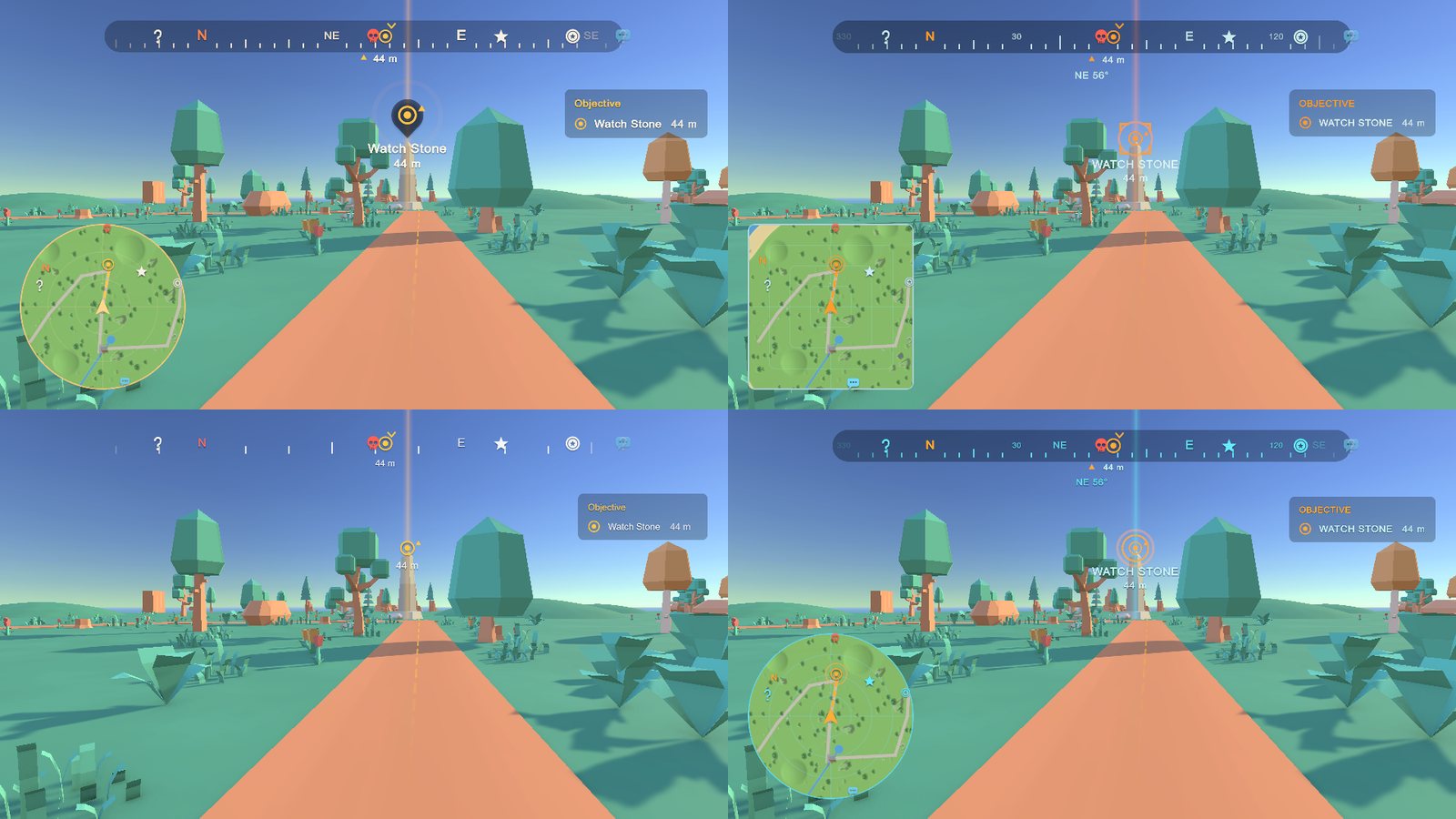
Presets #
| Preset | Look |
|---|---|
| Explorer | Ivory icons on dark pins, a gold objective with a beacon, a warm compass and a gold-rimmed minimap. Fits most games. |
| Tactical | Corner brackets, capitals, amber objective, degree numbers, a square radar. |
| Minimal | Icons and numbers only: no names, no compass bar, no radar. |
| Holo | Science fiction: cyan rings on dark glass, degree numbers, an amber objective and a cyan scan. |
Switch while playing with WaypointHud.UsePreset or NextPreset (the demos do it with Tab).
Compass and minimap frames #
Any look can wear any frame (the look gives the colours, the frame the shape):
| Setting | Choices |
|---|---|
| Compass > Skin | Bar (rounded, the default), Open Rail (one fine line with fading ends, no bar: the quietest), Fantasy (short pointed ends, a fine inner rim, a stud at each end), Sci-fi (cut corners, corner brackets, a short lit segment) |
| Compass > Curved | Bends the compass gently with the view (Curve Depth, about 10 px); letters and icons stay upright |
| Radar > Frame Skin | Plain, Fantasy (a second rim, notches, a diamond at N, E, S and W), Sci-fi (four arcs, degree marks; brackets on a square map) |
The frames are drawn in code as flat vector art: crisp at any resolution and the same in every render pipeline. North on a minimap frame always points at true north, also when the map turns with the player. Small minimaps drop the fine marks first and keep their outline. Icons pinned at a compass end stay clear of its decorated ends.
Your own style #
On the HUD, press Save as my own style: it saves the current look as a Style asset in Assets/RareGeometryData/Bearing/Styles and
uses it. Or Assets > Create > Bearing > Style. Changes show at once in the Game view.
| Section | You can change |
|---|---|
| Colours | Marker colour, objective colour, overall size, fade time. |
| Text | Your own font, sizes, colour, capitals, bold, shadow, outline. |
| Markers on screen | On or off, icon size, background (none, circle, ring, square, diamond, pin, brackets), colours, when names show (off, always, when looked at, when near), distance, shrinking and fading with distance, the objective pulse, padding, most at once, opacity behind walls. |
| Edge arrows | On or off, rectangle or ellipse path, margin, arrow shape (arrow, chevron, triangle, none), sizes, icon, distance, name, most at once, spacing. |
| Compass bar | On or off, top or bottom, width, height, field of view, ticks, N/E/S/W and NE/SE/SW/NW, degree numbers, centre mark, bar colour, tick and north colours, faded ends, icon size, which icons show distances, icons waiting at the ends, up/down arrows, and the direction words (for other languages). |
| Radar | On or off, corner, margin, size, round or square, turning or north-up, range, rings, colours, border, player arrow, blip size, out-of-range blips, N on the rim, height arrows, map picture and its opacity. |
Start from a preset buttons on the style replace every setting (your font is kept); Undo brings yours back.
Per waypoint #
Each Waypoint can use its own colour, its own icon sprite and its own Style (Own look), and switch any part on or off.
Your own pictures #
- Icons: pick Custom on a Waypoint and drag in any sprite.
- Marker background: set the style's Background to Custom and pick a Background Image.
- Edge arrow: set Arrow to Custom and pick an Arrow Image (pointing right).
- Radar player: pick a Player Image (pointing up).
White pictures on transparent work best: they take each waypoint's colour.
More to fine-tune #
- Tracker: Display shows icon, name and distance (Full), icon and name (Short), or icon and distance (Icon).
- Banner: fade in and out times and a slide in from above (off with reduced motion).
- Full-screen map: opening animation time, region name colour, the legend panels' colour.
- Own icons: Keep its own colours shows a full-colour picture as drawn instead of tinting it.
- Layout: nudge, size and fade the compass, minimap, tracker and banner (see the HUD).
Your own UI #
Turn off any part on the HUD and draw it yourself from what the HUD worked out. See Code and your own UI.