
Fog of war and region discovery
Fog of war #
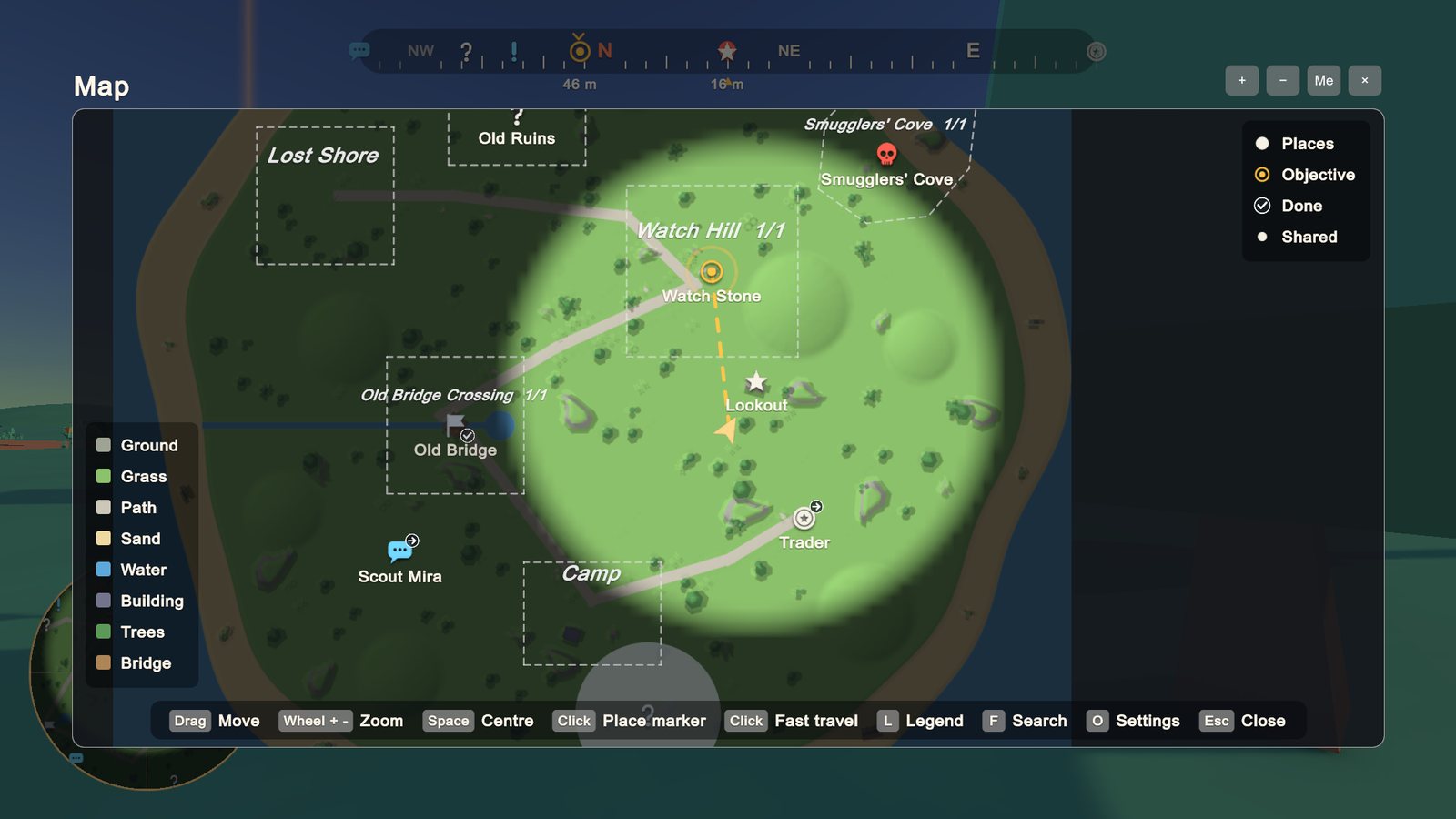
Tick Fog of war on the Waypoint Map. The map starts covered and is uncovered round the player as they explore, on the minimap and the full-screen map.
| Setting | What it does |
|---|---|
| Reveal radius | How far round the player the fog lifts, in metres. |
| Fog cell size | The fog's grid, in metres (smaller is finer; the default 3 m makes a 300 m map 100 x 100 cells). |
| Fog colour | Its alpha is how much of the land still shows through (0.94 = only a faint shape). |
| Hide waypoints in fog | Waypoints under the fog are left off the map (the current objective always shows). |
From code: map.Fog.RevealAll(), RevealCircle, RevealRect, Reset(), Uncovered (0 to 1, for "map 45% explored").
Regions #
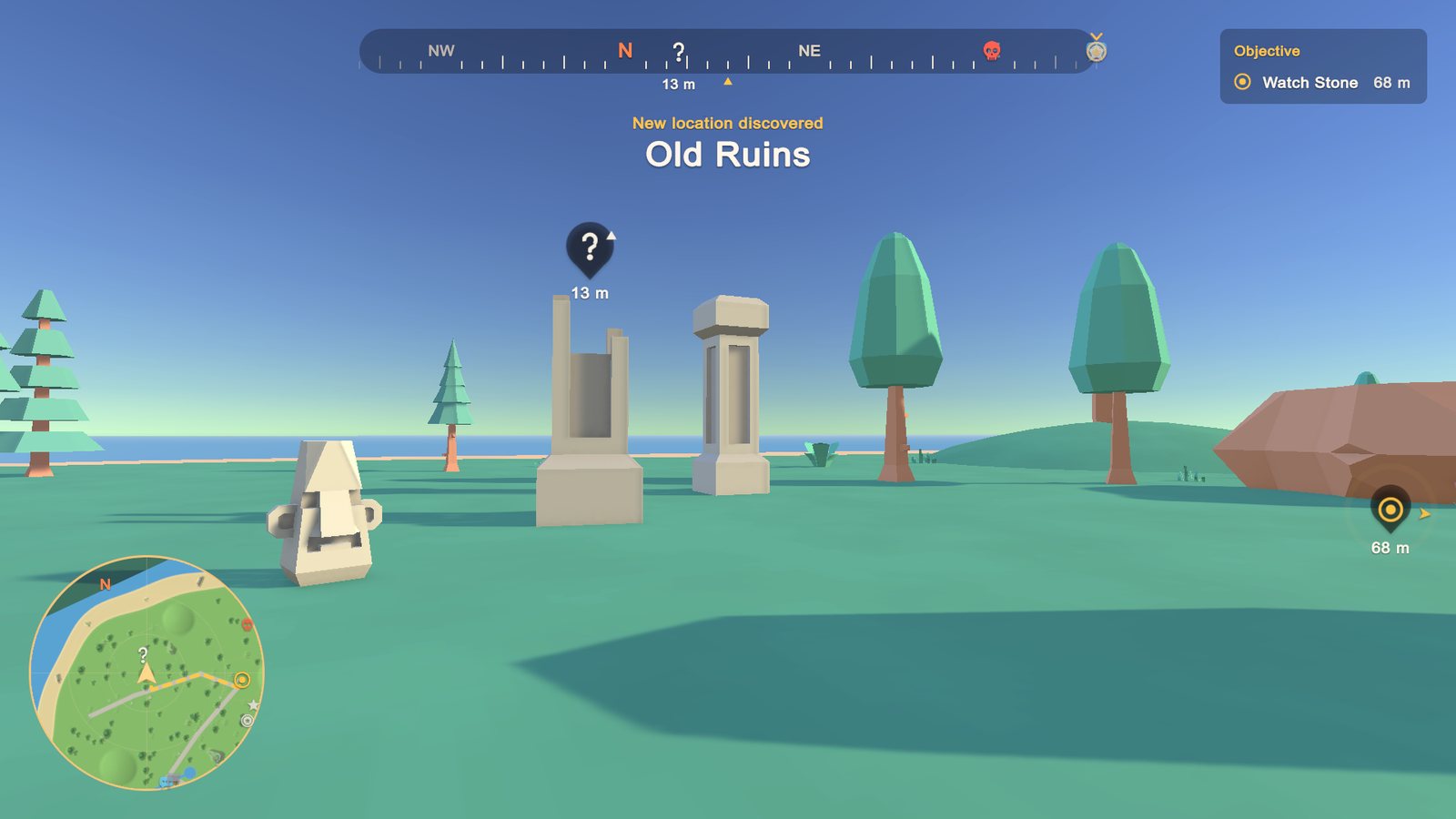
A Waypoint Map Region is a named area (a village, a forest, a district). Add one with GameObject > Bearing > Waypoint Map Region or the map's Add Region button, then size its box, or give it its own shape:
- Draw it: set Shape to Polygon, press Edit outline in its inspector, then in the Scene view Shift+click on the ground to add a corner, drag the dots to move them and Ctrl+click a dot to remove it. Corners sit on the ground.
- Fill it from the map: put the region's object on the area in the map picture (a field, a lake, a district on the Clean map) and press Fill from map. It floods out over similar colours (Tolerance) and makes the outline from what it filled; adjust the corners afterwards if you like. The Chart Table's Map tab lists every region with the same button.
Everything follows the shape: discovering it, uncovering the fog, region reveals (towers, items, events spread out in its shape), its place count, and the faint outline drawn on the full-screen map (and, for the region the player is in, on the minimap). Full-screen map > Region Outlines turns the outlines off.
The first time the player walks in:
- a Discovered banner shows its name near the top of the screen,
- its On Discovered event runs (and the static
WaypointMapRegion.AnyDiscovered), - with fog of war on, its whole area is uncovered,
- its name appears on the full-screen map.
Places are discovered too (see Chart Table). The banner (words, name only, icon only or none; position; time; a queue so two never overlap) is in the style's Banner section; each region can turn its banner off.
Towers, maps and story reveals #
A Waypoint Region Reveal uncovers part of the map at once. Make one with GameObject > Bearing > Region Reveal:
- Tower (walk up to it): a big circle clears outward from the tower while the map opens, so the player watches it.
- Item (call Reveal on pickup): a whole region clears. Call
Reveal()from your pickup (a UnityEvent works). - Event (call Reveal from your story): a circle clears; the places inside stay to be found.
The clearing spreads over Reveal Time and the places inside are discovered as it reaches them, each playing its own reveal. Pick which categories it discovers, a sound and an event. A used tower stays used after loading a save.
On a region, Revealed by (walking in, a lookout tower, an item, a story event) makes or updates the reveal for you.
Region progress #
The full-screen map writes how many of each discovered region's places the player has found next to its name
("Old Mill 3/7"). The words are the style's Full-screen map > Region Progress ({name}, {found}, {total}); turn it
off with Show Region Progress. From code: region.CountPlaces(out found, out total).
Saving #
WaypointSave.Capture() includes the fog and which regions were discovered. Restore puts them back, also for maps and
regions in scenes loaded later.
Reveal animations #
When a place changes state, its icons play a short animation on the screen marker, the compass, the minimap and the full-screen map. By default a discovered place's "?" flips over to its real icon and a ring bursts out; becoming the objective pulses; completing pops.
Everything is a setting in the style's Reveal animations section:
| Setting | What it does |
|---|---|
| Enabled | All reveal animations on or off. |
| Discovered, Activated, Completed, Other Change | One animation per kind of change: Kind (None, Pop, Flip, Pulse, Ring, Flip And Ring, Drop, Spin, Wiggle), Duration, Easing (Linear, Ease Out, Ease In Out, Overshoot), Scale (peak size), Ring Scale, Sound and Volume. Untick Enabled to turn one off. |
| Appeared | A place that appears while the game runs (spawned, unlocked, a shared pin). None by default. |
| Ping | A teammate's ping landing (a Ring by default). |
| On Markers, On Compass, On Minimap, On Map | Which displays play it. |
Motion presets. The style inspector's Motion row sets every animation at once: Off, Subtle, Standard
(the defaults), Lively or Arcade. It covers the reveals above, the objective's pulse (Markers on screen: Pulse Kind
Ring, Breathe or both, and Pulse Seconds), the banner's entrance (Discovery banner: Entrance Slide down, Slide up, Zoom or
Fade) and the route's flow (Route: Flow and Flow Speed). Colours, sizes and layout stay as they are; Undo brings yours
back. From code: style.ApplyMotion(MotionPreset.Lively). Players who turn on Reduced motion see none of it.
A place can override it (Waypoint > Discovery and fast travel > Reveal animation): Use Style, Off, or Own (its own animation for every change). Going Hidden or back to Undiscovered never animates.
Sound: set a clip on the animation, or listen to WaypointHud.RevealStarted (place, from, to, animation) and play your
own. From code: WaypointReveals.Play, WaypointReveals.PoseOf, waypoint.IsRevealing.