
The Waypoint HUD
One Waypoint HUD in the scene draws every waypoint for one camera. The Setup Wizard adds it; you can also use GameObject > Bearing > Waypoint HUD.
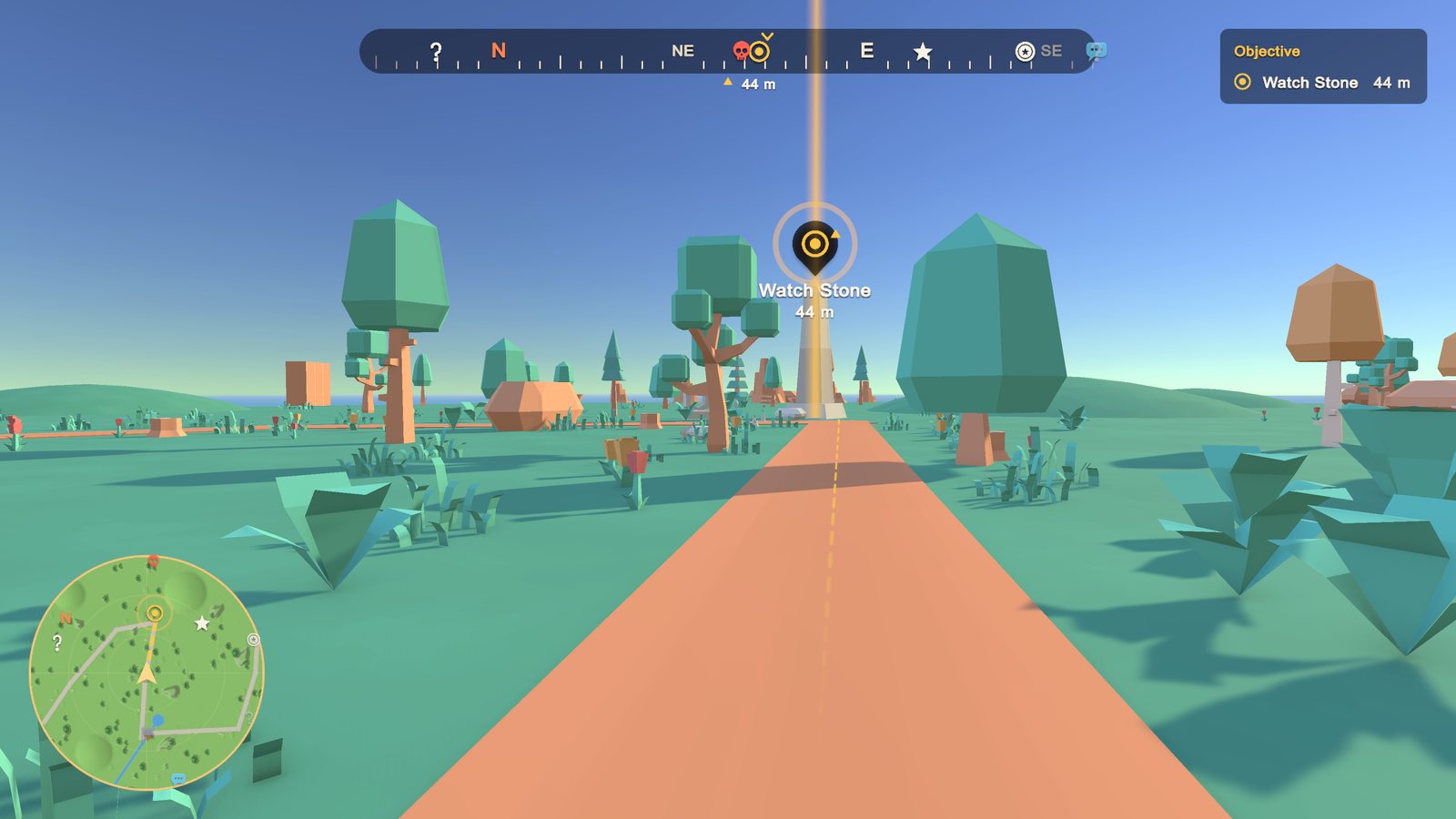
Look #
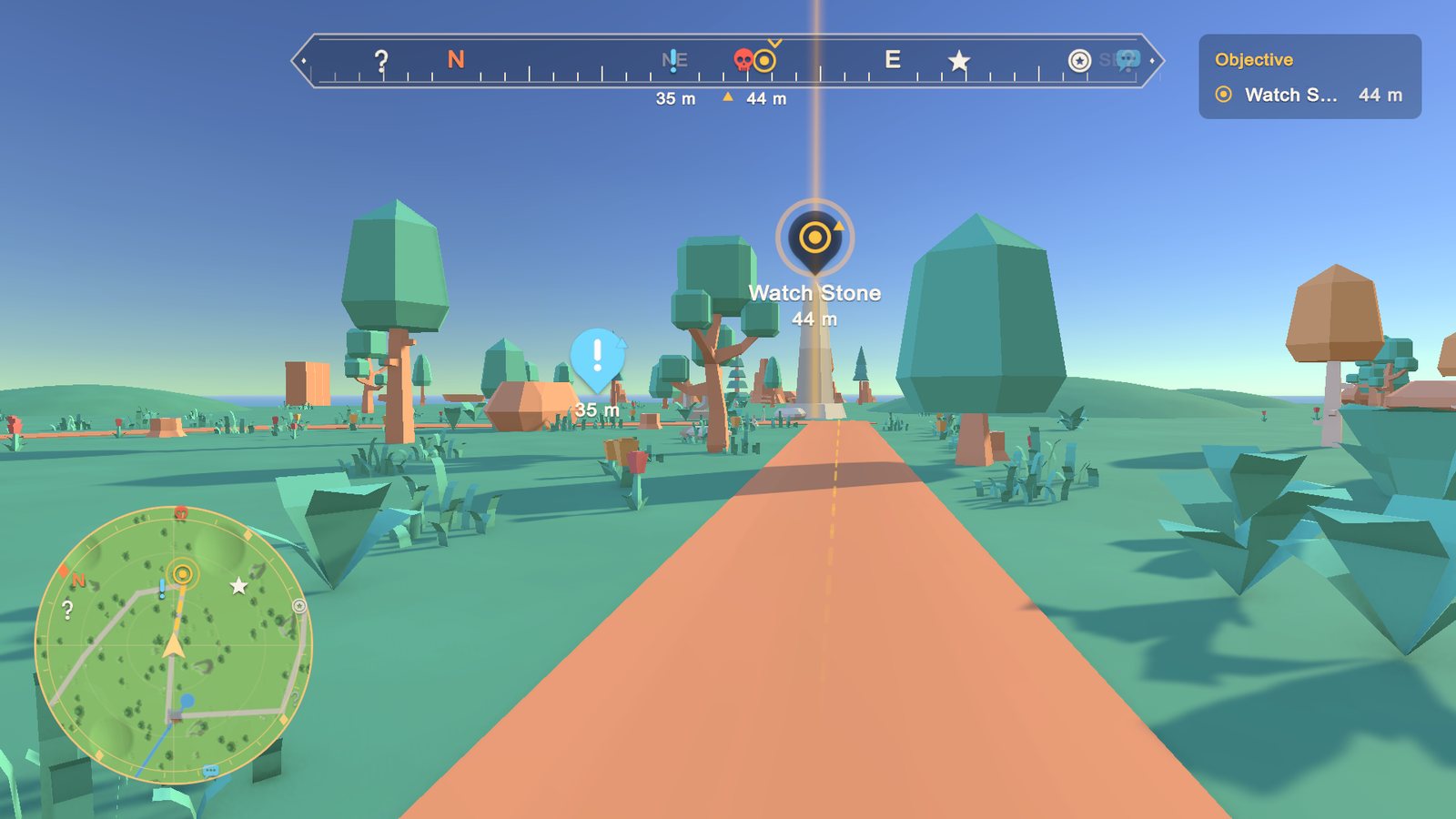
Press a preset button (Explorer, Tactical, Minimal, Holo) and the Game view changes at once. Save as my own style saves the current look as a Style asset you can change in every detail. See Make it yours.
Show #
| Setting | What it does |
|---|---|
| Markers on screen | An icon above each visible waypoint, with its name and distance. |
| Edge arrows | For waypoints off screen or behind the player: an arrow at the screen edge, with the icon and distance. |
| Compass bar | Directions and waypoint icons along the top (or bottom). |
| Radar | A round or square radar in a corner, with an optional map picture. |
| Units | Metres, feet, or plain numbers. |
Player and camera #
| Setting | What it does |
|---|---|
| View Camera | The camera players see through. Empty = the camera tagged MainCamera (looked up every frame, so camera switches just work). |
| Player | Distances, reaching and the radar centre are measured from here. Empty = the object tagged Player (found by itself), else the camera. The inspector says which. |
| Plane | XZ for 3D games, XY for 2D games (2D games). |
Full-screen map #
| Setting | What it does |
|---|---|
| Open with key | M by default (None = only from code or a button: ToggleMap()). |
| Free the mouse while open | Unlocks the mouse while the map is open and puts it back after. |
| Pause the game while open | Sets Time.timeScale to 0 while the map is open. |
More #
| Setting | What it does |
|---|---|
| Keep clear of my own HUD | Screen areas (fractions of the screen from its top-left: x, y, width, height) that edge arrows keep out of, for your own health bar or quest list. Shown as orange boxes in the Game view while not playing. |
| Hide When Paused | Hide the HUD while Time.timeScale is 0. |
| Only these groups | Show only waypoints in these groups (empty = all); for split screen. |
| Fade behind walls on layers | Markers behind these layers fade. Nothing = off. At most 16 wall checks a frame, spread over waypoints. |
| World north rotation | Which world direction is north, in degrees. |
| UI Scale | This HUD bigger or smaller. |
| Sorting Order | Draw order against your other UI Toolkit panels. |
| Check Reach | This HUD's player fires waypoints' Reached events. Turn off on extra split-screen HUDs if only one player should. |
| Preview In Edit Mode | Draw in the Game view while not playing. |
| Panel Settings | Your own UI Toolkit Panel Settings. Empty = the HUD makes its own (scales with the screen from 1080p). |
Beacons #
A beacon is a pillar of light rising from a place, so the player sees where to go from far away. The HUD draws it, so it looks the same in Built-in, URP and HDRP with nothing to set up. Turn it on in the style's Beacons section and pick which places get one (the objective, the objective and the tracked place, or every place the player knows); each place can say Always or Never (Show on > Beacon). At most the nearest 6 are drawn at once (Max Beacons; 0 = no limit), so the sky never fills with pillars. Height, width, opacity, colour, a slow glow and the fade as the player arrives are all settings.
Where each part sits #
Every look starts from the same layout, on one 28 px margin (at 1080p) from the screen edges:
| Part | Default place |
|---|---|
| Compass bar | top centre, 28 px from the top |
| Objective tracker | top right, its top on the compass bar's line, 28 px from the right |
| Minimap | bottom left, 28 px from the left and the bottom |
| Discovery banner | centred under the compass bar |
| Edge arrows | along the screen edges, kept clear of the minimap and the tracker |
On a narrow screen the tracker keeps its corner and narrows (long names end in "..."). Only when there is no room beside the compass at all (for example one half of a side-by-side split screen) does it move under the compass row. Each part's own section moves it (corner, gaps), and the Layout section below fine-tunes it. A style made before this layout keeps the positions it saved; set Tracker > Edge Gap to 28 and Radar > Margin to 28 to use it.
Layout: nudge, size and opacity per part #
The style's Layout section moves the compass, minimap, tracker and banner a little from where their own settings put them, sizes each about its middle and makes each see-through. Offsets are in pixels at 1080p, so they look the same at every resolution. Use it to make room for your own HUD.
Language #
Set a Text Table on the HUD (More > Language) to show every word in your game's language. See Code and your own UI.
How it behaves #
- Crowds: each style sets the most markers, arrows, compass icons and radar blips at once. The objective wins, then higher Priority, then the nearest.
- Reaching is decided once a frame from the nearest player, however many HUDs there are.
- Hiding everything:
SetVisible(false)for cutscenes and menus. - Edge arrows never overlap each other, keep clear of the compass bar and the radar, and stay inside the screen's safe area.
- Behind the player an arrow points down or to the side, never up, so it reads as "turn around".
- Split screen: one HUD per camera; each draws in its camera's part of the screen.
- Performance: no garbage per frame in steady play, no extra cameras, no shaders. Tested with every preset.