
Rooms and Roles
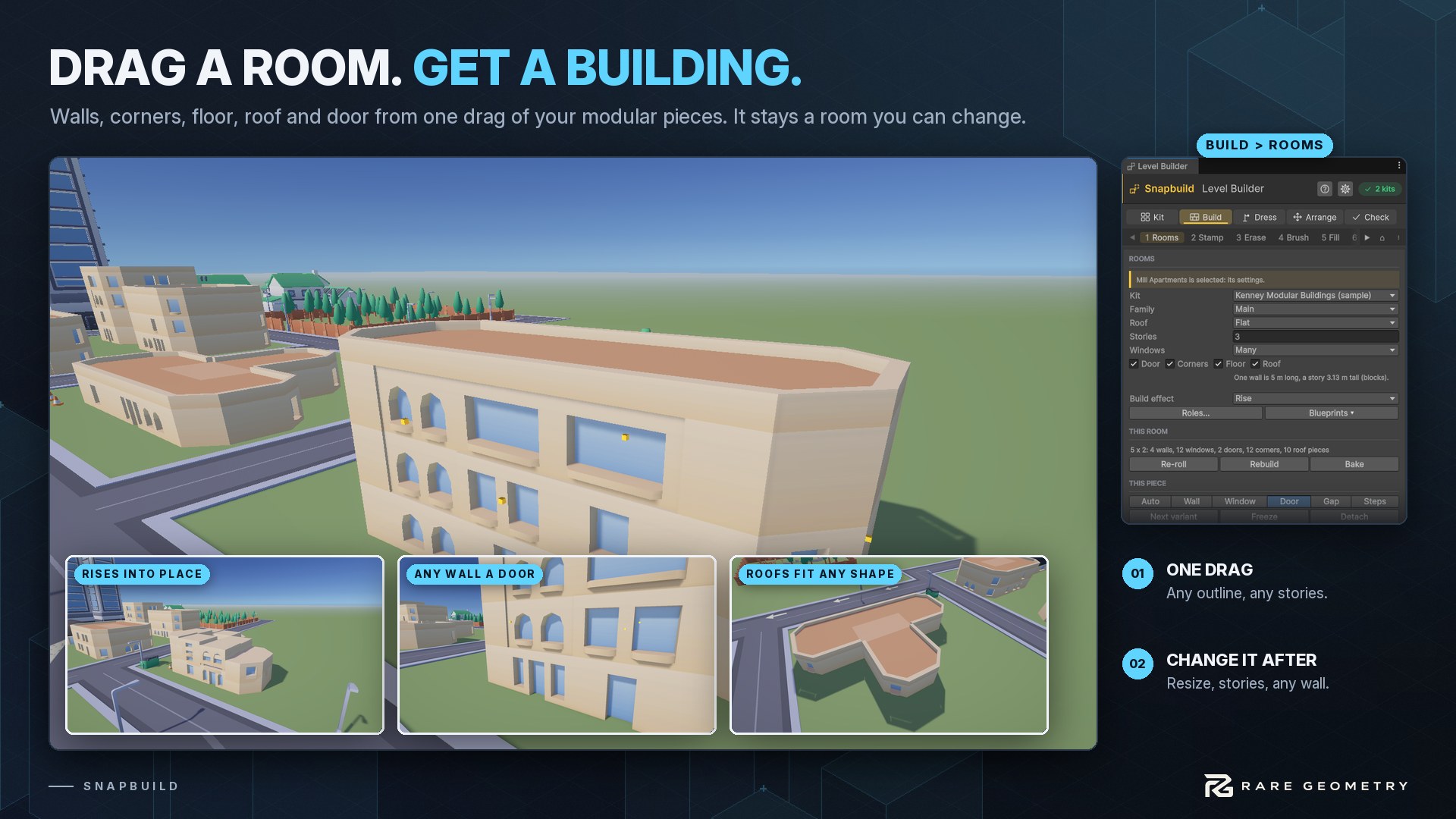
Rooms builds whole structures from your kit's pieces: you drag a rectangle and walls, corners, a floor, a roof, a door and windows go down. A room stays a room. Select it later and drag a side to resize it, click a wall to make it a window, a door or a gap, add a story. What you chose by hand stays where you chose it.
Rooms needs to know which pieces are walls, corners, floors and roofs. That is what Kit > Roles is for. Snapbuild guesses the roles of every piece when a kit is made; you check them once.
Build a room #
- Open Build > Rooms.
- Pick the Kit and the Family (the set of parts that go together, for example stone or wood).
- Drag a rectangle in the Scene view. A see-through ghost of the whole building shows every piece before you let go, with a count and the size in metres (the door is outlined in yellow). Let go and the room is built. One Undo takes it away.
Settings for the next room (and for the selected room, see below):
| Setting | What it does |
|---|---|
| Stories | How many stories of walls, one on top of another. |
| Windows | None, Some or Many: how many walls get a window by themselves. |
| Door | A door in the middle of the first side, on the ground floor. |
| Corners | Corner pieces (or pillars) where walls meet. |
| Floor | Floor tiles inside the walls, when the family has a floor piece. |
| Roof | A ceiling or roof over the top story, when the family has the pieces. |
| Roof (kind) | Which roof family to use, when the kit has several (flat, gable, slanted). |
Rooms grow a wall at a time. One wall's length (the module) and one story's height are measured from the family's wall piece and shown under the settings.
Build effect (under the settings, also in Roads): how new pieces appear in the Scene view when a tool places them. Rise (each piece rises out of the ground, bottom first), Drop (drops into place), Pop (grows to full size) or None (at once). It is only a look in the editor: the pieces are placed straight away, nothing about them changes, and it never runs in Play mode. It applies to every tool that places pieces, for you only.
Any outline, and runs of walls #
Switch Rectangle to Draw and click the corners one after another. Sides run along the grid, so any outline with square corners works: an L, a T, a courtyard.
- Click the first corner again: the outline closes and becomes a room.
- Enter (or a double click): the outline stays open and becomes a run of walls.
- Backspace takes back the last corner. Esc cancels.
Change a room after it is built #
Click a room (or any piece of it) with Rooms open. Its settings show in the window and change the room at once.
- Resize: drag one of the yellow handles in the middle of each side. The ghost shows the room at its new size; let go and only what changed is rebuilt. Walls that stay keep their objects, and anything you did to them.
- Change a wall: click the wall in the Scene view, then choose Auto, Wall, Window, Door or Gap under This piece. When the family has a steps piece there is Steps too (an entrance with steps).
- Next variant: another piece with the same role, in this place only.
- Freeze: this piece is never replaced, moved or re-rolled while its place exists. Use it after adjusting a piece by hand.
- Detach: the piece leaves the room and stays where it is as a plain object; the room leaves its place empty.
- Stairs: select a floor tile and click Stairs up from here. A staircase stands on the tile and the floor above it is left open. Turn the stairs changes the way it climbs.
- Re-roll: another mix of variants and windows. Walls you chose by hand, and frozen ones, stay.
- Rebuild: builds the room again from its settings: puts back pieces deleted by hand.
- Bake: the room becomes plain objects. It keeps everything it built and stops being a room that can be resized. Undo brings the room back.
A room never rebuilds by itself. It changes only when you change a setting, drag a side or press a button.
Blueprints #
A blueprint is a room saved to build again: its kit, family, outline, stories and every wall you chose.
- Blueprints > Save this room as a blueprint... with a room selected.
- Blueprints > Build > (name): the blueprint follows the mouse. Click to build it. R turns it a quarter turn; Shift-click keeps it in hand to build another; Esc puts it away.
- Blueprints are small text files in your data folder (
Blueprints/), so they travel with the project.
Kit > Roles #
Each row is a piece of the kit.
| Column | What it is |
|---|---|
| Role | What the piece is in a building: Wall, Wall with window, Wall with door, Corner, Inside corner, Pillar, Floor, Ceiling, Roof, Roof edge, Roof corner, Roof inside corner, Stairs, or Not a building part. |
| Family | The set of parts it goes with. Rooms builds from one family at a time. Pick one in use, or New... |
| Often | How likely the piece is to be chosen among those with the same role and family. 0 means only when you pick it (Next variant). |
| Turn (↻) | A quarter turn for a corner or roof piece that comes out facing the wrong way. |
In a narrow window the last columns are hidden; right-click a row for everything they do.
How Snapbuild guesses:
- Names: words such as wall, window, door, corner, pillar, floor, roof, stairs in a piece's name, and the word that tells sets apart (stone, wood) as the family.
- Sizes: the most common wall length is the kit's module. A door leaf or a window frame on its own is not a wall module and gets no role.
- Shapes: for corners and roof pieces Snapbuild measures the model. A roof tile with a raised border on one side is an edge, on two neighbouring sides a corner, on none a middle tile; a sloping tile's low side is its eave. This is also how it knows which way to turn them.
What you set by hand is kept when the pack is scanned again. Guess again guesses everything you have not set.
What the families of the sample kit look like #
Try the sample kits (Home) makes the Kenney Modular Buildings kit. Its walls are blocks 5 m long, so Rooms places a block in every cell along the inside of the outline, corner blocks in the corners, and the flat roof with its border.
Troubleshooting #
- "This kit has no piece marked as a wall." Open Kit > Roles, list Every piece and give the wall pieces the Wall role.
- Corners or roof edges face the wrong way. Click ↻ on that piece in Kit > Roles, then Rebuild the room.
- Walls overlap or leave gaps. The module is the wall piece's length. If the family mixes walls of different lengths, give the odd ones another family.
- A piece I moved jumped back. Freeze it before changing the room, or Detach it.