
Build Catalog
Level Builder > Kit > Catalog. A build catalog is a kit's pieces written down for a build menu: each piece with a name, a picture, a category, its size, its grid and what it is (wall, door, floor, prop). Use it for a build menu of your own, or let a building product read it: Interactra's Make Buildable step finds every catalog by itself.
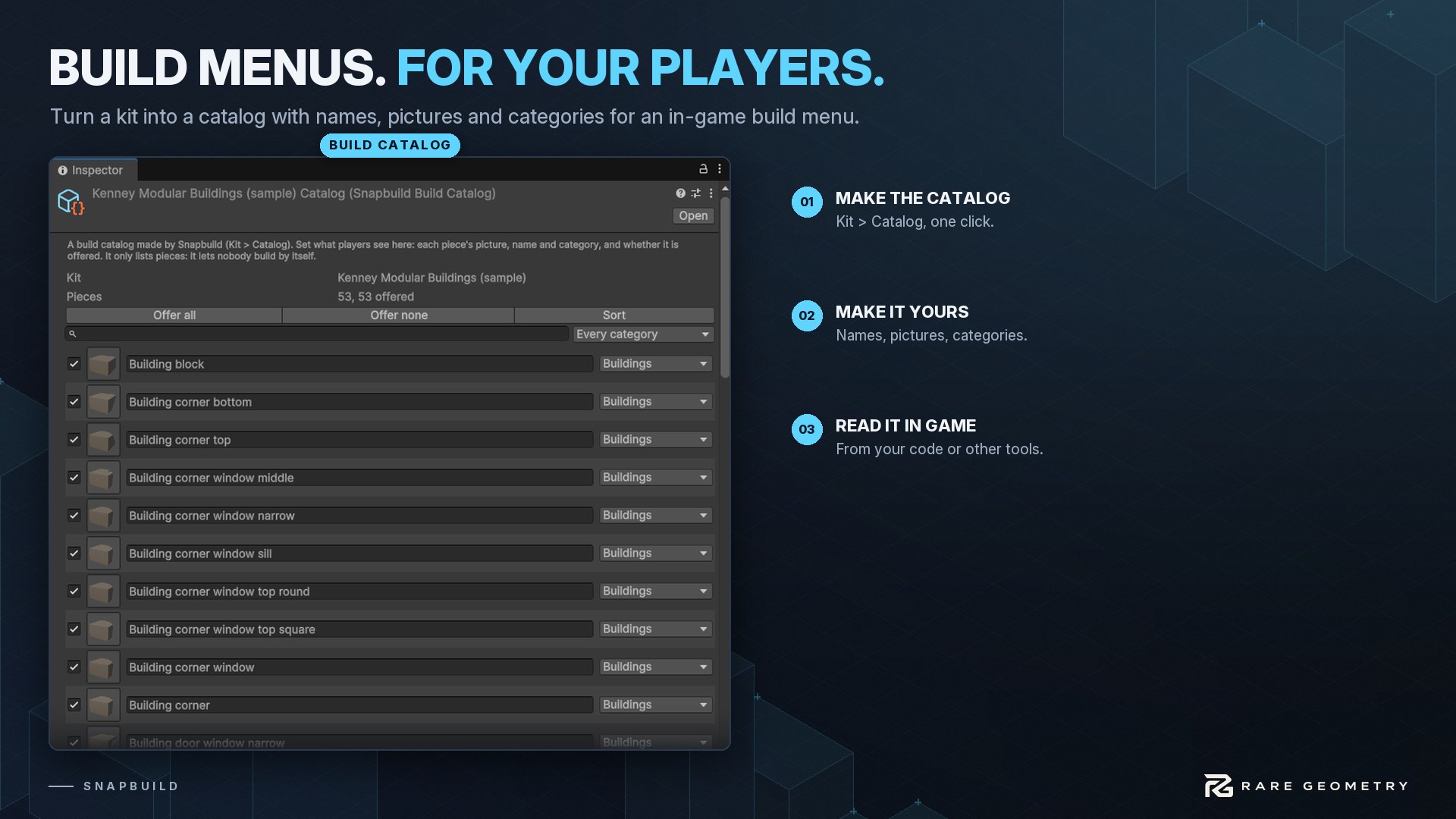
A catalog only lists pieces. It lets nobody build anything: who may build what, where and at what cost belongs to the system that does the building.
Make one #
- Open Kit > Catalog and pick the Kit.
- Pieces: every piece in the palette, or only the building parts (the pieces with a role in Kit > Roles).
- Pictures (on by default): each piece gets a picture from the palette's thumbnail, saved beside the catalog as an image. Replace any of them with your own.
- Click Make the catalog. It is saved in your data folder (
Assets/RareGeometryData/Snapbuild/Build Catalogs). The pack's own files are not touched.
When the kit changes, click Update the catalog: new pieces are added, measurements follow the kit, and pieces the kit lost are dropped. What you set by hand is kept.
Make it yours #
Click Set names, pictures and what is offered... (or select the catalog asset). Its Inspector lists every piece on a row, and everything a player would see of it is there:
| On each row | What it is |
|---|---|
| The tick | Offered: listed for building systems. Off: kept in the catalog, but nobody is told about it. |
| The picture | The piece's picture in a build menu. Click it to choose another image. |
| The name | The name players see. Type your own. |
| The category | The tab it is listed under. Pick one in use, or New... |
Offer all, Offer none and Sort (by category, then name: the order a build menu lists them in) are above the list, with a search and a category filter.
From your own code #
using System.Collections.Generic;
using RareGeometry.Snapbuild;

public SnapbuildBuildCatalog catalog;                 // drag the catalog asset here

var categories = new List<string>();
catalog.CopyCategories(categories);                   // the tabs of your build menu
var walls = new List<SnapbuildBuildCatalog.Piece>();
catalog.CopyOffered(walls, "Walls");                  // name, picture, prefab, size, grid of each
catalog.SetOffered(id, true);                         // an unlock: readers hear PiecesChanged
Each piece has id (it stays the same when the catalog is made again), displayName, prefab, category, role,
family, bounds (its box from the prefab's origin, in metres), grid (one cell in metres, 0 for none), icon, and
for wall parts hasFront and frontYaw (the side that faces out, in degrees clockwise from the prefab's forward).
hasFront is only set where Snapbuild really knows it.
Other products read every catalog through BuildCatalogs in RareGeometry.Core (the shared foundation that ships
inside Snapbuild). The editor lists every catalog there for you. In a build, hand the asset to your build menu as
above, or call catalog.Register() once.